
How I Transformed My Selfies into Professional LinkedIn Headshots with Betterpic
This article is part of our LinkedIn Headshots collection.
Hey there! Today, I'm excited to share with you how I managed to create polished LinkedIn headshots without stepping foot in a photographer's studio. That's right—no more scheduling appointments, no more bad hair days, and no more uncomfortable photo sessions. Instead, I used Betterpic, a fantastic AI-powered tool that transforms your everyday selfies into professional headshots. In this blog post, I’ll walk you through the entire process, from selecting a package to getting feedback on the final images, just as I did in my latest video.
Step-by-Step Guide to Creating Your LinkedIn Headshot
Step 1: Visit BetterPic and Pick Your Package
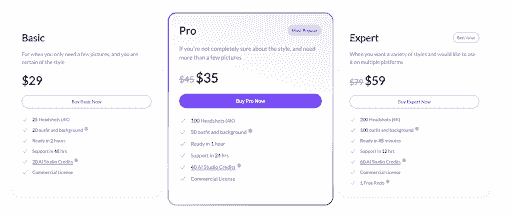
First things first, head over to our homepage Betterpic.io. Here, you'll find several packages to choose from. For this walkthrough, I opted for the basic package, which costs $35. While the basic package is great for a start, I recommend going for the pro package if you want more style options. Check out the pricing options.
Step 2: Enter Your Details
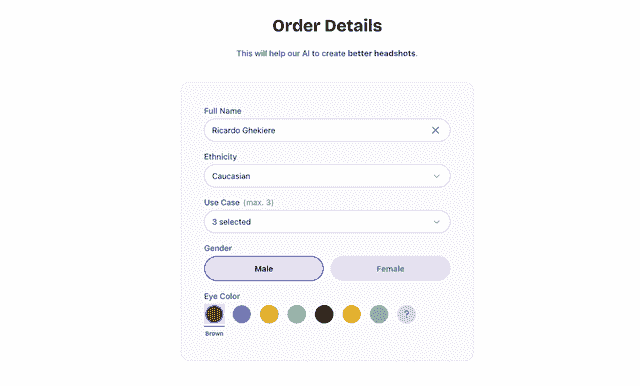
Once you've picked your package, it's time to provide some details to help the AI model understand your needs. You'll fill in your name, ethnicity, and use case (like social media, business cards, etc.). For me, I needed a professional yet approachable headshot for my LinkedIn profile. You'll also select your gender and eye color to further refine the AI's customization.
Step 3: Choose Your Style
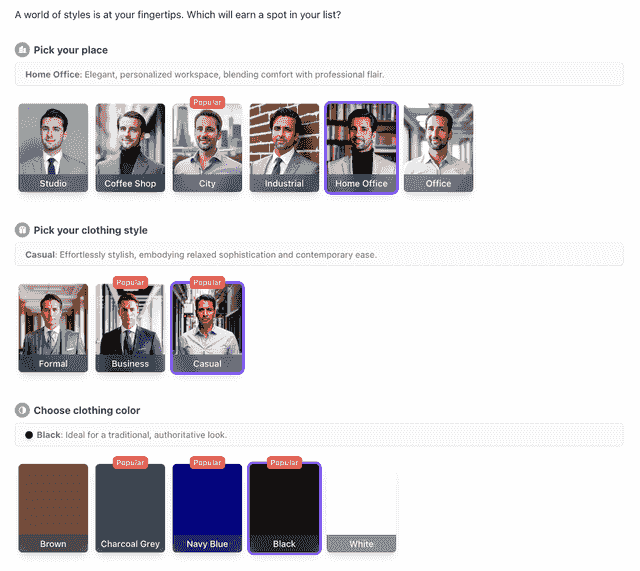
The next step is to choose your preferred style. With the basic package, you're limited to one style, but it's enough to get started. I went for a home office vibe, aiming for a smart yet casual look. I chose a black outfit to keep things simple and professional. If you opt for a higher package, you'll get up to six styles, offering more variety for different occasions. Explore AI Studio for more customization options.
Step 4: Upload Your Selfies
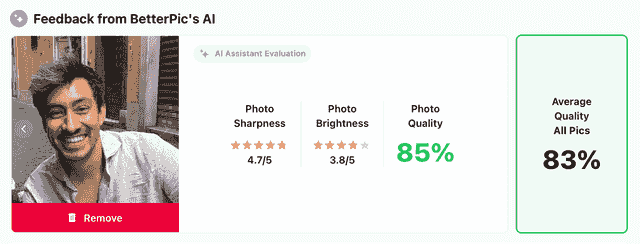
Now comes the fun part—uploading your selfies. The best photos to upload are close-ups, selfies, and half-body shots. These help the AI headshot generator to get a good sense of your facial features and body type. Avoid silly faces, heavy makeup, and nudity, as these can interfere with the AI's training process. I uploaded nine photos, and after a quick quality check, all of them were accepted with an average quality score of 83%.
Step 5: Generate Your Headshots
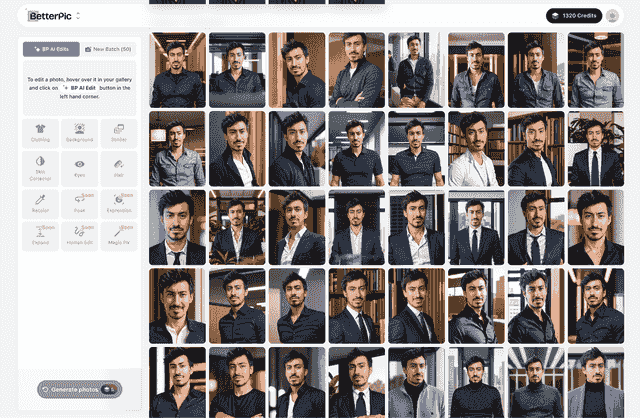
With your selfies uploaded, it's time to generate your headshots. Simply hit the generate button, and the AI will start working its magic. For the basic package, this process can take up to an hour, but it's usually much quicker. As the AI works, you'll start to see your new headshots appear. The excitement of watching them come in is almost like unwrapping a present—you never know what you're going to get!
Step 6: Review and Select Your Favorite Headshots
Once the headshots are generated, it's important to review them carefully. I recommend doing this with a friend or family member, as they can offer valuable perspective. You'll want to select the top 3-5 headshots that best represent you. Remember, the goal isn't to love all 100 photos, but to find a few standout images that you can confidently use for your LinkedIn profile and other professional needs. If you're actively applying for jobs, a salary to hourly calculator can help you evaluate offers and compare compensation more effectively.
Step 7: Request Human Edits (Optional)
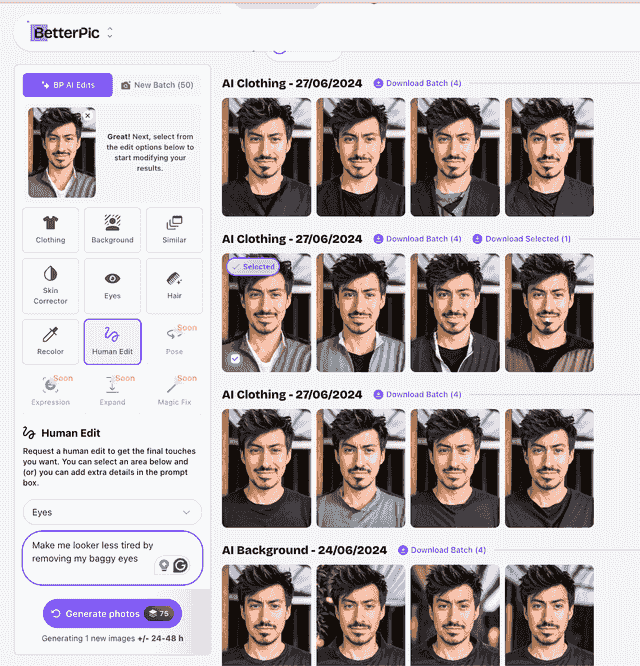
If there are minor tweaks you'd like to make, Betterpic offers an option to request human edits. This is particularly useful for adjustments that the AI might not handle perfectly, like removing bags under your eyes or tweaking the background. Simply specify the changes you want, and a human editor will make them for you. I found this feature incredibly helpful for fine-tuning my final headshots. Check out the manual photo edits for more details.
Traditional LinkedIn Headshots: Time, Cost, and Other Considerations
To give you a better understanding of why Betterpic is such a great alternative, let’s take a look at the traditional process of getting LinkedIn headshots:
Time Investment: Scheduling a session with a professional photographer can be time-consuming. According to LinkedIn, a typical session lasts between 30 minutes to an hour. This doesn’t include the time spent commuting to the studio, waiting for your turn, or the post-session photo selection process.
Cost: Professional headshot sessions aren’t cheap. The cost can range from $150 to $300 or more, depending on the photographer's reputation and the package you choose. Additional costs might include outfit changes, makeup artists, and retouching fees. The Balance Careers states that high-quality headshots can easily go beyond $300, especially in metropolitan areas.
Flexibility and Convenience: Traditional headshot sessions require you to take time off work or use your weekends. This can be inconvenient for many professionals. With Betterpic, you can generate your headshots from the comfort of your home at any time that suits you.
Conclusion
In under 1h, I was able to create a professional LinkedIn headshot that I'm genuinely proud of, all without leaving my home. Betterpic's AI technology makes it easy and affordable to get high-quality headshots tailored to your personal style and needs. If you're looking to refresh your online presence or need a new professional photo, Betterpic is the right tool for you.
What do you think of my new headshots? Have you tried Betterpic or any other AI photo tools? I'd love to hear your thoughts and experiences.
LinkedIn Headshot Best Practices
Getting a great LinkedIn headshot is not just about showing up and smiling — the technical details matter just as much as how you look. Here are the best practices I've learned, both from my own experience and from helping others refresh their profiles.
Use the right dimensions. LinkedIn accepts profile photos as small as 400x400 pixels, but I'd strongly recommend uploading at 800x800 pixels or higher. A higher-resolution image stays sharp when LinkedIn scales it across different screen densities and devices, so you never end up looking blurry or pixelated.
Choose a clean, neutral background. Solid colors — light grey, soft white, or a muted blue — keep the focus entirely on you. Busy or cluttered backgrounds distract the viewer and make your photo look less polished, regardless of how good the rest of the shot is.
Dress for the role you want. Wear what you would wear to a meeting with an important client or hiring manager in your industry. Business casual works for most professionals, but if your field skews creative or casual, dress to match that culture — authenticity matters more than a generic "professional" look.
Keep your facial expression warm but natural. A genuine, relaxed smile signals approachability without looking forced. Practicing in front of a mirror before your shoot — or before uploading selfies to an AI tool like BetterPic — helps you find an expression that feels authentic rather than stiff.
Pay attention to lighting direction. Soft, even light coming from slightly in front of you and above eye level is universally flattering. It minimizes shadows under the eyes and chin. If you're shooting at home, positioning yourself facing a window rather than with your back to it makes a significant difference.
Make direct eye contact with the camera. Looking slightly off to the side can read as distracted or unconfident. Train your eyes directly into the lens — this creates the impression of eye contact with anyone viewing your profile, which builds immediate trust.
Frame yourself head and shoulders. Your face should fill roughly 60-70% of the frame, with your head and the top of your shoulders visible. Cutting off your chin or leaving too much empty space above your head are both framing mistakes that make a photo feel unfinished.
Mind your file format and size. LinkedIn accepts JPG, PNG, and GIF files up to 8 MB. JPG at high quality is the safest choice for most headshots — it keeps file sizes manageable without any visible quality loss at the dimensions LinkedIn displays.
Common LinkedIn Headshot Mistakes to Avoid
Even well-intentioned professionals make these mistakes. Knowing what to avoid is just as valuable as knowing what to do right.
Cropping yourself out of a group photo. This is one of the most common shortcuts people take, and it almost always shows. Other people's arms, shoulders, or blurred faces creeping into the frame immediately signal to viewers that this wasn't a dedicated headshot — and that you're not taking your professional image seriously.
Using an outdated photo. If your headshot is more than two years old — or if you've changed your hair, lost or gained significant weight, or otherwise look noticeably different — it's time to update it. Meeting someone in person who looks nothing like their LinkedIn photo creates an awkward disconnect and undermines trust before the conversation even starts.
Applying heavy filters. Filters that dramatically alter skin tone, add artistic effects, or borrow from social platforms like Instagram or Snapchat look out of place on a professional network. Light retouching to correct harsh shadows or minor blemishes is fine; anything that makes you look like a different person is not.
Settling for an unprofessional background. Laundry on a chair, a cluttered home office, or a restaurant setting might feel casual and approachable, but on LinkedIn they read as careless. If you don't have access to a clean setting, an AI headshot generator like BetterPic can produce a polished background for you without any studio required.
Shooting under inconsistent or mixed lighting. Mixing warm tungsten bulbs with cool daylight creates unflattering color casts that no amount of post-processing can fully fix. Stick to a single light source — ideally natural window light — for a clean, balanced result.
Cropping too tightly or too loosely. Zooming in so close that the top of your head is cut off feels claustrophobic, while pulling so far back that your face is a small dot in the frame makes you look approachable but hard to recognize. The sweet spot is head and shoulders, with a small amount of breathing room above your head.
Frequently Asked Questions
What size should a LinkedIn headshot be?
LinkedIn recommends a minimum of 400x400 pixels and a maximum file size of 8 MB. In practice, uploading at 800x800 pixels or higher gives you the best results — your photo will stay crisp across all devices and screen resolutions without any visible softness or compression artifacts.
How often should I update my LinkedIn headshot?
A good rule of thumb is to update your headshot every one to two years, or any time your appearance changes significantly — new hairstyle, major weight change, or a shift in how you present professionally. An outdated photo can confuse people who meet you in person, so keeping it current is worth the small effort.
Can I use an AI-generated headshot on LinkedIn?
Yes, you can. LinkedIn has no policy against AI-generated or AI-enhanced headshots. The key is that the photo should still look like you — accurate to your real appearance, professional in tone, and free from obviously artificial distortions. Tools like BetterPic are specifically designed to produce results that are realistic and professionally appropriate.
Should I smile in my LinkedIn photo?
Generally, yes — a natural, relaxed smile makes you look approachable and confident, which are qualities most employers and clients want to see. That said, the right expression depends on your industry. A warm, closed-mouth smile might suit finance or law, while a broader, open smile works well in sales, marketing, or customer-facing roles.
What background is best for LinkedIn headshots?
A clean, solid-color background in a neutral tone — light grey, off-white, or soft navy — is the safest and most versatile choice. It keeps the focus on your face, photographs well across different profile sizes, and won't distract or clash with your clothing. Avoid busy patterns, outdoor scenes with distracting elements, or bright colors that overwhelm the shot.
How much does a professional LinkedIn headshot cost?
A traditional studio session with a professional photographer typically costs between $150 and $400, and can go higher in major cities or with experienced photographers. AI-powered alternatives like BetterPic start at a fraction of that cost — often under $40 — and can be completed entirely from home, making professional-quality headshots accessible to anyone.
Sources & References
- LinkedIn Profile Photo Tips — LinkedIn
- How Your Profile Photo Impacts Your LinkedIn Presence — LinkedIn Official Blog
- AI Image Generation Market Report — Grand View Research
- How AI Is Changing Photography — Forbes
- Professional Headshot Photography Pricing — Thumbtack

Written by
Apoorv SharmaHead of Performance
Apoorv leads performance and growth at BetterPic with 9+ years of experience across SEO, SEM, and growth marketing. He oversees content strategy, data-driven marketing, and hands-on testing of AI headshot platforms. Previously held senior performance marketing roles across the US, Belgium, and India.
- Google Analytics & Google Ads certified
- HubSpot Inbound & Content Marketing certified
- 9+ years in SaaS growth and performance marketing
Related linkedin headshots resources
Keep exploring this topic with focused resources from the B2C journey.
Primary destination:LinkedIn headshots
- 8 Ways To Enhance Your Linkedin Profile With Ai Headshots page
- AI Headshots for LinkedIn: Complete 2026 Guide to Professional Profile Photos That Get You Hired
- 6 Ways an AI LinkedIn Headshot Can Transform Your Image and Attract New Opportunities
- Creating the perfect image with AI Linkedin Photo Generators
- Decoding AI LinkedIn Photo Generators - Myth Vs Facts
Frequently Asked Questions
How do you turn selfies into professional LinkedIn headshots?
- Upload 6-9 clear selfies and casual photos to an AI headshot generator like BetterPic. Choose your preferred style and background, and receive professional headshots in under an hour. The basic package starts at $35 for 20 headshots.
How much does a professional LinkedIn headshot cost?
- AI-generated headshots cost $35-79 depending on the package, delivering 20-120 photos. Traditional photographer sessions cost $150-300 or more, with additional fees for retouching. AI options save both time and money while producing comparable quality.
What kind of photos should you upload for AI headshots?
- Upload close-ups, selfies, and half-body shots with good lighting and clear facial features. Avoid silly faces, heavy makeup, sunglasses, and nudity. Aim for about 9 photos with an average quality score of 80% or higher for best results.
How long does it take to get AI LinkedIn headshots?
- Most AI headshot generators deliver results in under one hour. The entire process from selecting a package to receiving final headshots typically takes less than an hour, compared to traditional photography which requires scheduling, travel, and weeks of waiting.
Can you edit AI-generated LinkedIn headshots?
- Yes. Many AI headshot platforms offer human editing options for minor tweaks the AI might not handle perfectly, such as removing under-eye bags or adjusting backgrounds. BetterPic allows you to request specific changes from a human editor after generation.
Save 87%on average on your professional photos.
Whenever, wherever you are.
Get studio-quality, 4K images in a variety of outfits & settings in less than an hour.
Get your headshots nowStart now